

Automate MFA Testing with Selenium — Tutorial, Code & Best Practices

To automate MFA testing with Selenium, use GetMyMFA's API to fetch SMS verification codes during your E2E test. Create a helper function that calls the /v1/{phoneId}/mfa/latest endpoint, extracts the mfaCode, and passes it to your WebDriver test via sendKeys. This tutorial includes complete examples in both Java and Python.
Why Selenium for MFA Testing?
Selenium WebDriver is the most widely adopted browser automation framework, with native bindings for Java, Python, C#, Ruby, and JavaScript. If your team is already running Selenium tests, adding MFA automation is a natural next step - no framework migration needed. Everything below relies on the GetMyMFA MFA test automation API, available on the Pro and Enterprise plans.
However, MFA creates a real challenge for Selenium tests. Your automated test stops at the verification code screen because there is no phone to receive the SMS. Some teams disable MFA in test environments (a risky shortcut), others fall back to manual testing. Neither approach scales.
In this tutorial, we will show you how to automate the full MFA login flow with Selenium and the GetMyMFA API, with complete code examples in both Java and Python. We have previously covered the same pattern with Playwright and Cypress - the core approach is the same, adapted for Selenium's API.
What we will build
A Selenium WebDriver test that handles the full SMS-based MFA login flow automatically. Here is what the test does:
- Opens the login page and enters credentials
- Waits for the MFA prompt to appear
- Calls the GetMyMFA API to retrieve the latest verification code
- Fills in the code and submits
- Verifies that the login succeeded
Complete source code in Java and Python is available for download at the end of this article.
Overview: How the flow works
Whether you use Selenium, Playwright, or Cypress, the high-level flow is the same. Here is how the pieces fit together:
- Start sign-in. Your Selenium test navigates to the login page and enters the user credentials.
- App sends SMS. The application sends an MFA code by SMS to a GetMyMFA virtual number.
- Code exposed via API. GetMyMFA captures the SMS and makes the code available through its REST API.
- Fetch the code. Your test calls the API using an HTTP client (Java's
HttpClientor Python'srequests) to get the latest code. - Submit the code. The test types the code into the MFA form using
sendKeys()and completes authentication.
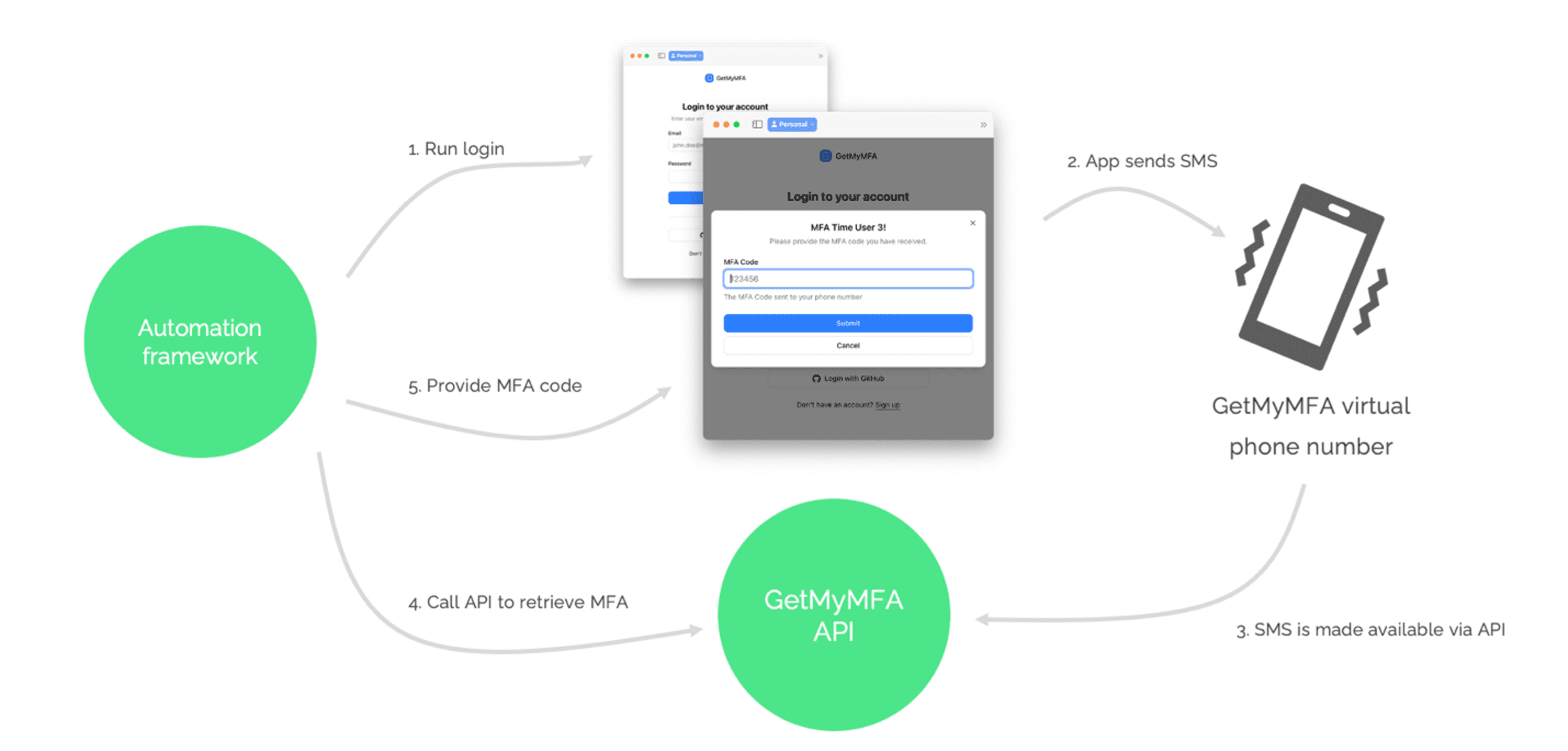
Note: In this demo, the actual SMS send (step 2) is skipped to avoid cost; the rest remains fully automated.
Tutorial: Set up Selenium + GetMyMFA
Step 1 - Set up your Selenium project
For Java, add the Selenium dependency to your pom.xml (Maven):
<dependency>
          <groupId>org.seleniumhq.selenium</groupId>
          <artifactId>selenium-java</artifactId>
          <version>4.27.0</version>
      </dependency>
      <dependency>
          <groupId>org.json</groupId>
          <artifactId>json</artifactId>
          <version>20240303</version>
      </dependency>
Or with Gradle:
implementation 'org.seleniumhq.selenium:selenium-java:4.27.0'
      implementation 'org.json:json:20240303'
For Python, install Selenium and requests:
pip install selenium requests python-dotenvMake sure you have a compatible browser driver installed. With Selenium 4.6+, Selenium Manager automatically downloads the correct ChromeDriver, so no manual setup is needed in most cases.
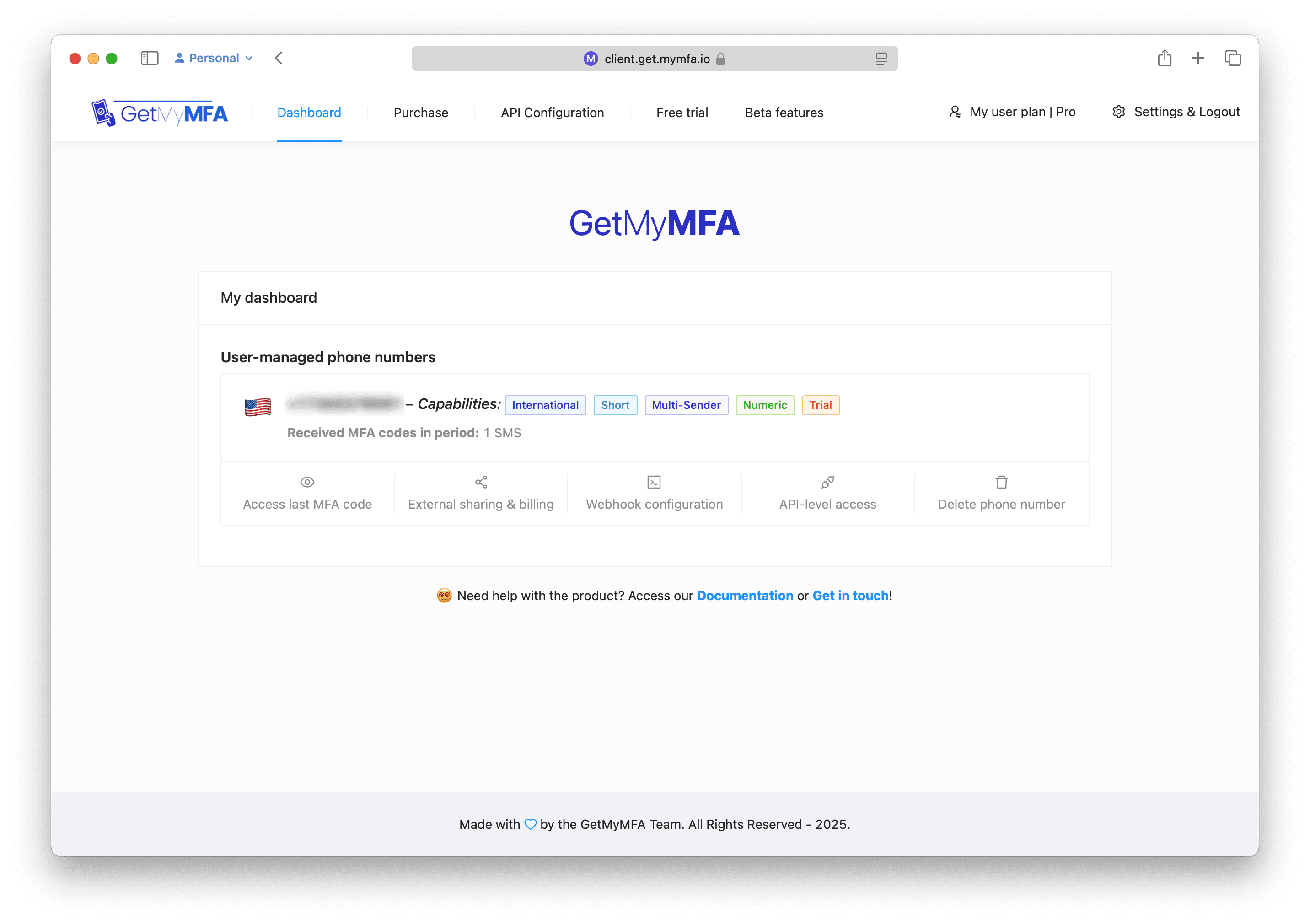
Step 2 - Create a GetMyMFA account + API key
Head to get.mymfa.io and click Sign Up. The Trial plan gives you a temporary virtual phone number with full API access.
Once signed in, go to API Configuration and create an API key. Copy it somewhere safe - you will need it in the next steps.
Step 3 - Get your virtual phone number ID
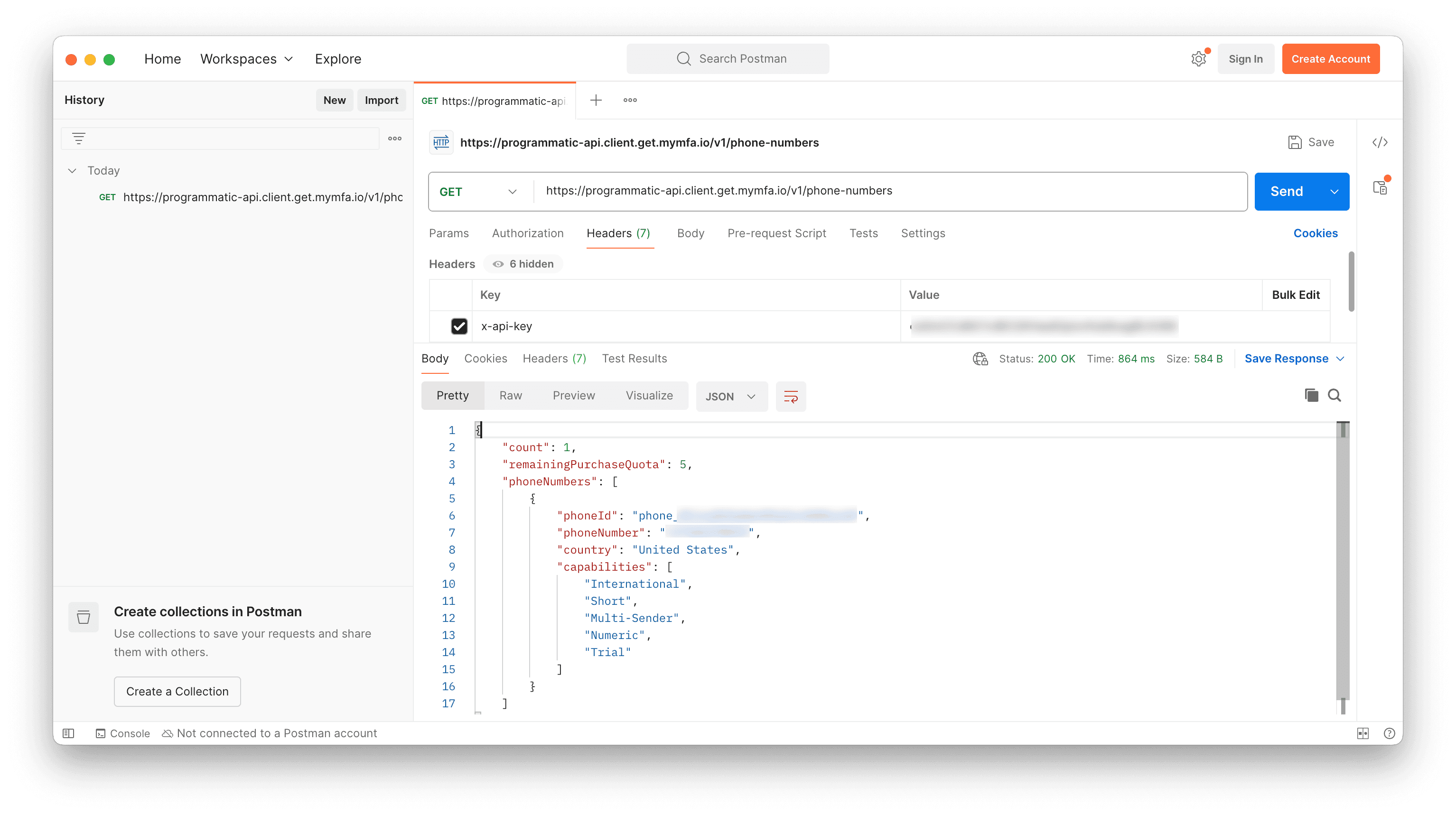
Using your API key as an x-api-key header, call the following endpoint:
GET https://programmatic-api.client.get.mymfa.io/v1/phone-numbersThe response includes a phoneId field. Save this value - your test will use it to retrieve MFA codes. You can also verify everything works by calling:
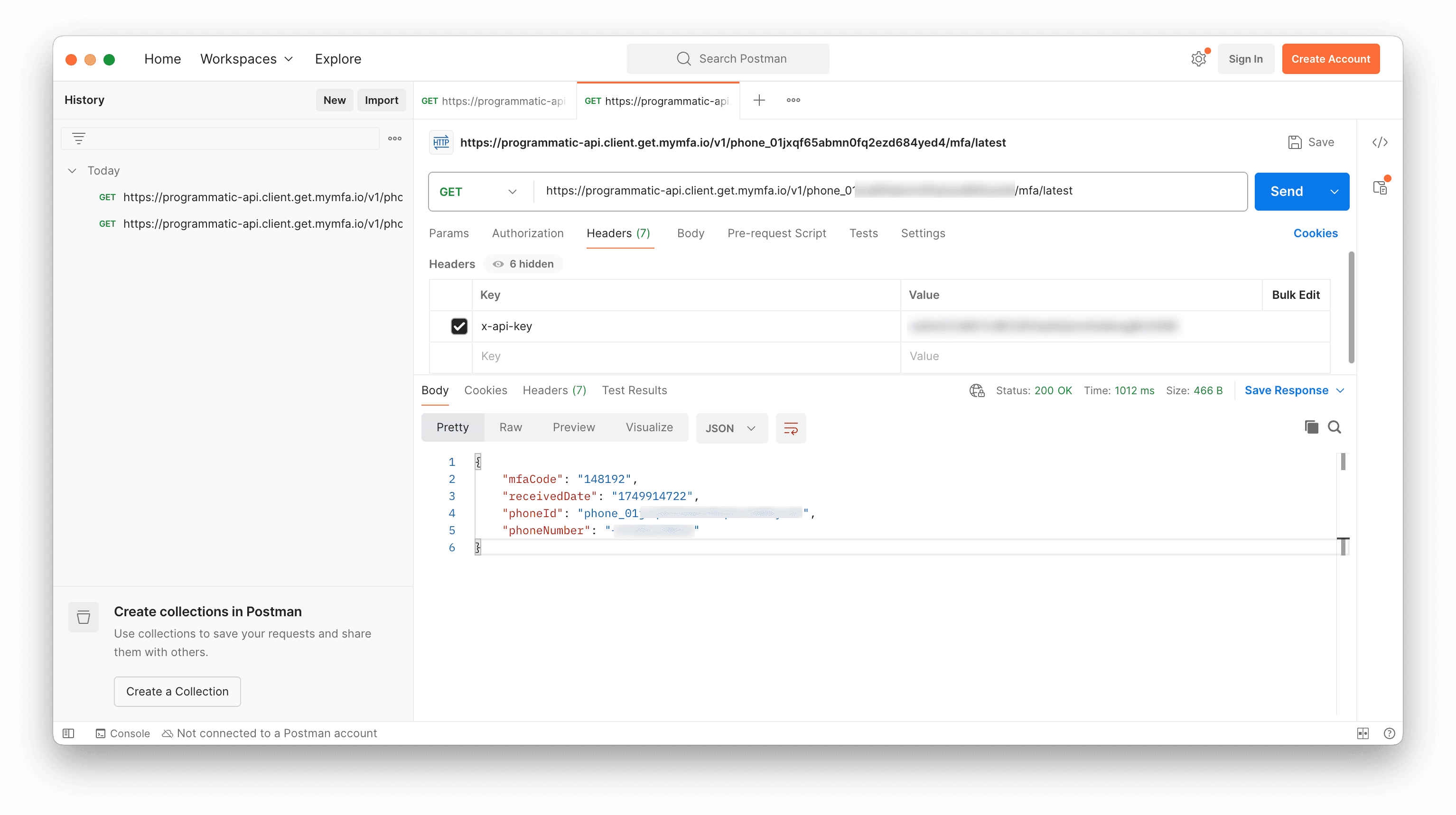
GET https://programmatic-api.client.get.mymfa.io/v1/<YOUR_PHONE_ID>/mfa/latestThe code is in the mfaCode field of the response.
Here is what the second call looks like when you fetch the latest MFA code:
Step 4 - Configure environment variables
Create a .env file in the root of your project with your credentials:
GETMYMFA_PHONE_NUMBER_ID=your_phone_id_here
GETMYMFA_API_KEY=your_api_key_here
TEST_USER_EMAIL=your_test_email
TEST_USER_PASSWORD=your_test_password
For Java, read these from System.getenv() (set them in your shell, CI secrets, or an IDE run configuration). For Python, use python-dotenv to load them automatically.
Make sure.envis listed in your.gitignoreso you never commit secrets to version control.
Step 5 - Create an MFA helper function
Java helper - uses the built-in java.net.http.HttpClient (Java 11+):
import java.net.URI;
import java.net.http.HttpClient;
import java.net.http.HttpRequest;
import java.net.http.HttpResponse;
import org.json.JSONObject;

public class MfaHelper {

    private static final String BASE_URL =
        "https://programmatic-api.client.get.mymfa.io/v1";

    public static String getMfaCode(String phoneId, String apiKey)
            throws Exception {
        HttpClient client = HttpClient.newHttpClient();
        HttpRequest request = HttpRequest.newBuilder()
            .uri(URI.create(BASE_URL + "/" + phoneId + "/mfa/latest"))
            .header("x-api-key", apiKey)
            .header("Content-Type", "application/json")
            .GET()
            .build();

        HttpResponse<String> response =
            client.send(request, HttpResponse.BodyHandlers.ofString());

        JSONObject json = new JSONObject(response.body());
        return json.getString("mfaCode");
    }
}
Python helper - uses the requests library:
import os
import requests

BASE_URL = "https://programmatic-api.client.get.mymfa.io/v1"

def get_mfa_code(phone_id: str, api_key: str) -> str:
    """Fetch the latest MFA code from GetMyMFA API."""
    response = requests.get(
        f"{BASE_URL}/{phone_id}/mfa/latest",
        headers={
            "x-api-key": api_key,
            "Content-Type": "application/json",
        },
    )
    response.raise_for_status()
    return response.json()["mfaCode"]
Both helpers do the same thing: call the GetMyMFA API with your API key and return the mfaCode string.
Step 6 - Write the Selenium test
Java test:
import org.openqa.selenium.By;
import org.openqa.selenium.WebDriver;
import org.openqa.selenium.WebElement;
import org.openqa.selenium.chrome.ChromeDriver;
import org.openqa.selenium.support.ui.ExpectedConditions;
import org.openqa.selenium.support.ui.WebDriverWait;
import java.time.Duration;

public class MfaLoginTest {

    public static void main(String[] args) throws Exception {
        String phoneId = System.getenv("GETMYMFA_PHONE_NUMBER_ID");
        String apiKey  = System.getenv("GETMYMFA_API_KEY");
        String email   = System.getenv("TEST_USER_EMAIL");
        String password = System.getenv("TEST_USER_PASSWORD");

        WebDriver driver = new ChromeDriver();
        WebDriverWait wait =
            new WebDriverWait(driver, Duration.ofSeconds(10));

        try {
            // Step 1 - Navigate to login page
            driver.get("https://demo.mymfa.io/login");

            // Step 2 - Enter credentials
            driver.findElement(By.name("email")).sendKeys(email);
            driver.findElement(By.name("password")).sendKeys(password);
            driver.findElement(
                By.cssSelector("button[type='submit']")).click();

            // Step 3 - Wait for MFA prompt
            wait.until(ExpectedConditions.visibilityOfElementLocated(
                By.xpath("//*[contains(text(), 'MFA Time')]")));

            // Step 4 - Fetch MFA code from GetMyMFA API
            String mfaCode = MfaHelper.getMfaCode(phoneId, apiKey);

            // Step 5 - Enter MFA code and submit
            driver.findElement(By.name("mfaCode")).sendKeys(mfaCode);
            driver.findElement(
                By.xpath("//button[contains(text(), 'Submit')]")).click();

            // Step 6 - Verify login succeeded
            WebElement success = wait.until(
                ExpectedConditions.visibilityOfElementLocated(
                    By.xpath(
                        "//*[contains(text(), 'MFA code verified')]")));
            System.out.println("Test passed: " + success.getText());

        } finally {
            driver.quit();
        }
    }
}
Python test:
import os
from selenium import webdriver
from selenium.webdriver.common.by import By
from selenium.webdriver.support.ui import WebDriverWait
from selenium.webdriver.support import expected_conditions as EC
from mfa_helper import get_mfa_code

phone_id = os.environ["GETMYMFA_PHONE_NUMBER_ID"]
api_key  = os.environ["GETMYMFA_API_KEY"]
email    = os.environ["TEST_USER_EMAIL"]
password = os.environ["TEST_USER_PASSWORD"]

driver = webdriver.Chrome()
wait = WebDriverWait(driver, 10)

try:
    # Step 1 - Navigate to login page
    driver.get("https://demo.mymfa.io/login")

    # Step 2 - Enter credentials
    driver.find_element(By.NAME, "email").send_keys(email)
    driver.find_element(By.NAME, "password").send_keys(password)
    driver.find_element(By.CSS_SELECTOR, "button[type='submit']").click()

    # Step 3 - Wait for MFA prompt
    wait.until(EC.visibility_of_element_located(
        (By.XPATH, "//*[contains(text(), 'MFA Time')]")))

    # Step 4 - Fetch MFA code from GetMyMFA API
    mfa_code = get_mfa_code(phone_id, api_key)

    # Step 5 - Enter MFA code and submit
    driver.find_element(By.NAME, "mfaCode").send_keys(mfa_code)
    driver.find_element(
        By.XPATH, "//button[contains(text(), 'Submit')]").click()

    # Step 6 - Verify login succeeded
    success = wait.until(EC.visibility_of_element_located(
        (By.XPATH, "//*[contains(text(), 'MFA code verified')]")))
    print(f"Test passed: {success.text}")

finally:
    driver.quit()
Let us walk through what these tests do:
driver.get()- Opens the login page in Chrome.findElement(By.name()).sendKeys()- Finds the email and password fields by theirnameattribute and types the credentials.- Explicit wait - Uses
WebDriverWaitto wait for the MFA prompt to appear. This is more reliable thanThread.sleep(). getMfaCode()/get_mfa_code()- Calls our helper function, which hits the GetMyMFA API and returns the code.sendKeys(mfaCode)- Types the MFA code into the verification field and clicks Submit.- Assertion - Waits for the success message to confirm authentication completed.
Run your Java test with:
mvn testOr run your Python test with:
python mfa_login_test.pyBest Practices for MFA Test Automation
Security Considerations
- Environment Isolation: Use dedicated test environments with separate MFA configurations. Never use production phone numbers in tests.
- API Key Management: Store API keys as environment variables or CI/CD secrets, never hard-coded in your test files.
Test Reliability
- Explicit Waits: Always use
WebDriverWaitwithExpectedConditionsinstead ofThread.sleep(). Selenium's explicit waits are the most reliable way to handle dynamic page elements. - Retry Logic: If the MFA code is not immediately available (e.g., SMS delivery delay), add a short wait (3-5 seconds) before calling the API, or implement a polling loop that checks every 2 seconds.
- Stable Selectors: Use
By.name(),By.id(), ordata-testidattributes rather than CSS classes or XPath based on DOM structure that may change.
CI/CD Integration
- Headless Mode: Run Chrome in headless mode by adding
--headless=newto ChromeOptions for faster CI execution. - Parallel Execution: Use unique virtual numbers for parallel test runs to avoid MFA code collisions. Selenium Grid makes it easy to distribute tests across multiple browsers and machines.
- Environment Variables: Configure API credentials through your CI provider's secret management (GitHub Actions secrets, GitLab CI variables, Jenkins credentials, etc.).
- Screenshots on Failure: Use
TakesScreenshotinterface in Java ordriver.save_screenshot()in Python to capture the browser state when a test fails.
Final thoughts
Automating MFA testing with Selenium does not require complex workarounds. With the GetMyMFA API and a simple helper function, your tests can handle SMS-based verification codes just like any other form field.
The result is an end-to-end test that mirrors real user behavior, without disabling security features or resorting to manual steps. Whether you are using Java, Python, or any other Selenium-supported language, the pattern is the same: call the API, get the code, type it in.
If you are already using Playwright or Cypress for other tests, the same GetMyMFA API key and virtual phone number work across all frameworks. Set it up once, and every test run validates your MFA flow automatically.
Ready to automate your MFA testing?
START WITH A FREE TRIAL · NO CREDIT CARD REQUIRED · FULL API ACCESS

Founder, GetMyMFA. Builds the platform that lets teams keep MFA switched on while they ship to the App Store, run end-to-end tests and automate processes.


