

iOS App Rejected for 2FA? How to Fix Guideline 2.1 Rejections

TL;DR
Apple rejects iOS apps under Guideline 2.1 when reviewers cannot complete the 2FA login flow. The fix: create a GetMyMFA virtual phone number, register it as the 2FA number on your test account, and share the GetMyMFA web interface URL in your App Review notes. Reviewers can then view MFA codes and complete the login. No code changes needed, takes under 10 minutes to set up.
The rejection message you got
If you are reading this, you probably just received something like this from Apple:
Guideline 2.1 - Performance - App Completeness. We were unable to review your app as we were not able to verify the in-app purchase. Specifically, we were unable to complete the two-factor authentication login.
Or a variation mentioning that the reviewer "could not sign in" or "could not access full functionality." The core issue is always the same: Apple reviewers had no way to receive your 2FA verification code, so they could not get past the login screen.
This falls under Guideline 2.1 (App Completeness). Apple requires that every feature of your app works during review. If reviewers cannot log in, they cannot review the app, and it gets rejected.
The good news: this is one of the easiest rejections to fix. You do not need to change any code.
Why this happens
When your app sends a 2FA code by SMS during login, that code goes to a phone number. Apple reviewers do not give you their phone numbers, and they will not set up an authenticator app for your account. So the code goes nowhere, the reviewer gets stuck, and your app gets rejected.
This is especially common for:
- Fintech and banking apps where 2FA is mandatory for regulatory compliance (PCI-DSS, SOC 2)
- Healthcare apps with HIPAA requirements that enforce MFA on all accounts
- Enterprise B2B apps where security policies do not allow 2FA exceptions
- Any app where the team chose SMS-based 2FA and cannot easily turn it off for one account
Common workarounds (and why they fall short)
Before we get to the actual fix, here are the approaches teams typically try first:
1. Disable 2FA on the test account
This works technically, but it creates problems. Your compliance team may not allow 2FA exceptions on production accounts. Apple is also testing a different experience than your real users get, which defeats the purpose of the review. And if your app requires 2FA for all users, you might need backend changes to even allow an account without it.
2. Build a demo mode
Some teams build a special "demo mode" that bypasses authentication entirely. This is expensive to build, expensive to maintain, and Apple has explicitly warned against submitting apps that behave differently in review than in production. It can also lead to a Guideline 2.3.1 rejection if Apple detects the app is behaving differently.
3. Hardcode a bypass code
Embedding a fixed code like "000000" that always passes 2FA is a security risk. If that code leaks (through your codebase, a disgruntled employee, or reverse engineering), anyone can bypass your authentication. It is also another code path to maintain and eventually forget about.
4. Use your personal phone number
You could register your own phone number as the 2FA number for the test account and manually relay codes when Apple reviews. But reviews happen at unpredictable times (often at night or during weekends), and you would need to be available with your phone when the reviewer logs in. This does not scale and will fail if you miss the window.
The fix: share MFA codes with Apple through GetMyMFA
The idea is simple. Instead of trying to remove 2FA or work around it, give Apple reviewers a way to see the 2FA codes themselves. GetMyMFA provides virtual phone numbers that receive SMS messages and display them on a web interface that you can share.
Here is how to set it up:
Step 1 - Sign up and get a virtual number
Go to get.mymfa.io and create an account. Purchase a virtual phone number in a country that matches your SMS provider (US numbers work for most cases). The Starter plan includes everything you need for app submission.
Step 2 - Register the number on your test account
Update the 2FA phone number on your Apple review test account to the GetMyMFA virtual number. This is the same account whose credentials you provide in App Store Connect under "App Review Information."
Step 3 - Share access in your App Review notes
In App Store Connect, go to your app version and find the App Review Information section. In the review notes, include:
- The test account credentials (email and password)
- A link to the GetMyMFA web interface
- The GetMyMFA login credentials for the reviewer
- A short sentence explaining: "After entering the test account credentials, you will be asked for a 2FA code. Log in to the GetMyMFA link above to view the latest code received by SMS."
Step 4 - Submit and wait
That is it. When the Apple reviewer logs into your app and triggers 2FA, the SMS code lands on your GetMyMFA virtual number. The reviewer opens the GetMyMFA web interface, sees the code, enters it, and continues the review.
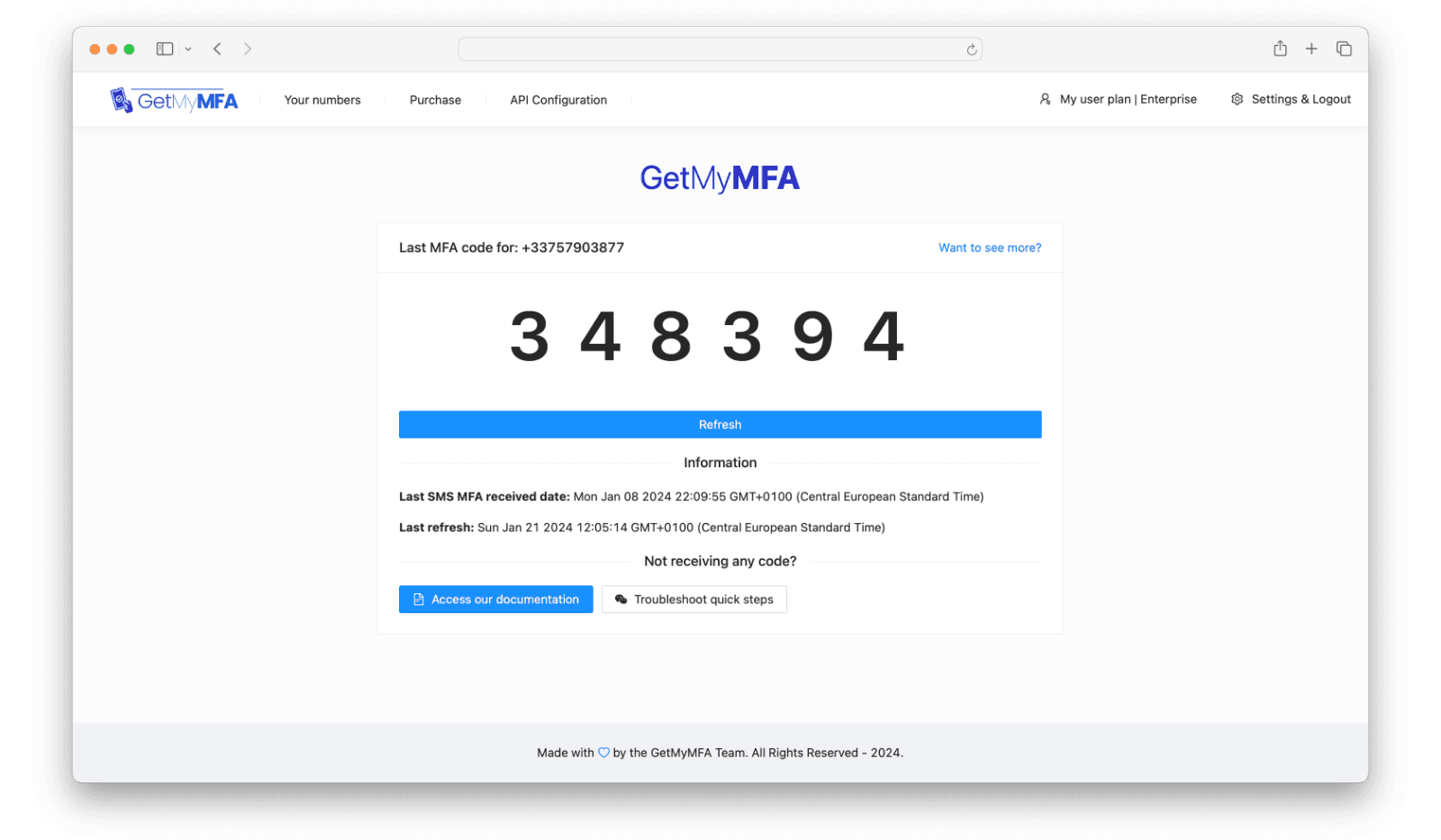
No code changes. No backend modifications. No demo mode. The reviewer experiences your app exactly as a real user would.
Tips for a smooth review
- Be explicit in your review notes. Do not assume the reviewer will figure out the flow. Write clear step-by-step instructions. The easier you make it for them, the faster the review goes.
- Test the flow yourself first. Log in to the GetMyMFA interface in a private browser, trigger the 2FA code, and confirm it shows up. Make sure the test account credentials work.
- Keep the test account active. If your app has session expiration or account lockout policies, make sure the test account will not be locked when Apple reviews it (which can be days after submission).
- Mention GetMyMFA by name in the notes. Some developers write vague instructions like "check the website for the code." Be specific: "Go to [URL], log in with [credentials], and the 2FA code will be displayed on the dashboard."
What about TOTP-based 2FA?
If your app uses TOTP (Google Authenticator, Microsoft Authenticator, Authy) instead of SMS, GetMyMFA handles that too. You can inject your TOTP secret key into the platform, and GetMyMFA generates the rotating 6-digit codes automatically. The reviewer sees the current code on the web interface, just like with SMS.
For email-based 2FA, GetMyMFA also lets you create custom email addresses that receive verification codes. Same principle: the code shows up in the web interface for the reviewer to use.
After approval: do you still need GetMyMFA?
Yes, for every future update. Apple reviews your app again with each new version submission. Keeping the GetMyMFA number registered on your test account means you are always ready for the next review cycle without any additional setup.
If you also want to automate MFA in your E2E test suite, GetMyMFA offers a programmatic API (available on the Pro plan) that lets you retrieve MFA codes in your Playwright, Cypress, or Selenium tests. But for app submission alone, the Starter plan is all you need.
Frequently Asked Questions
What is Apple Guideline 2.1 and why does it cause rejections?
Guideline 2.1 (App Completeness) requires that your app is fully functional when Apple reviewers test it. If your app uses 2FA and reviewers cannot receive the verification code, they cannot complete the login flow. Apple treats this as an incomplete app and rejects the submission.
Can I just disable 2FA for the Apple review account?
Technically yes, but it is not recommended. Disabling 2FA creates a security exception on a production account, which may violate your compliance policies (SOC 2, PCI-DSS, HIPAA). It also means Apple is testing a different experience than your real users get. Using GetMyMFA lets you keep 2FA enabled while giving reviewers access to the codes.
How long does it take to set up GetMyMFA for App Store submission?
Most teams are set up in under 10 minutes. Sign up, purchase a virtual phone number, register it as the 2FA number on your test account, and include the GetMyMFA login URL in your App Review notes. No code changes or backend modifications are needed.
Does this work for apps that use email-based 2FA instead of SMS?
Yes. GetMyMFA supports both virtual phone numbers (for SMS codes) and custom email addresses (for email-based verification codes). You can use whichever matches your app authentication flow.
Will I get rejected again if I resubmit with GetMyMFA?
No. Over 250 companies have used GetMyMFA to pass App Store review after an initial 2FA rejection. As long as your App Review notes clearly explain how to access the MFA codes, reviewers can complete the login flow and approve your app.
Fix your App Store rejection today
Set up in under 10 minutes · No code changes required · Starter plan included