

Android App Rejected for 2FA? How to Pass Google Play Review

TL;DR
Google Play rejects Android apps when the pre-launch report robo crawler or human reviewers cannot complete the 2FA login. The fix: create a GetMyMFA virtual phone number, register it as the 2FA number on your test account, and share the GetMyMFA web interface URL in your App content → App access section and in your pre-launch report settings. Reviewers and the crawler can then retrieve the codes and complete the login. No code changes needed, takes under 10 minutes.
The rejection or pre-launch report you got
If you are reading this, one of two things probably just happened.
Option A — your pre-launch report failed. You opened the report in the Play Console and saw something like:
Your app crashed or showed an unresponsive screen. The crawler was unable to navigate past the login screen.
The crawler reached your 2FA prompt, had no way to receive the code, and timed out. The report flags the screen as a stability or crash issue.
Option B — your app was rejected during policy review. Google sent you a message along the lines of:
We were unable to review the full functionality of your app. The login flow could not be completed.
This usually cites non-functional behavior or a violation of Google Play's policy on broken user experiences. The reviewer hit your 2FA screen, had nowhere to receive the verification code, and could not validate that the rest of the app worked.
Both come from the same root cause: your 2FA code goes somewhere Google cannot see. Different surfaces, same fix.
Why this happens on Android
Android apps are reviewed in three places, and 2FA can break all of them:
- The pre-launch report (robo crawler). Every release is tested by an automated bot that runs your app on real devices. Google explicitly says the crawler does not support 2FA-protected accounts or WebView-based authentication flows. If your login routes through 2FA, the crawler stalls on the verification screen.
- Manual policy review. Many apps, especially fintech, healthcare, and apps that handle sensitive data, also get a human review. The reviewer logs in with the credentials you provide. No 2FA code, no review.
- Closed and internal testing tracks. Real testers join via email invite. If your app forces 2FA, every tester needs a phone or authenticator that receives codes. New personal developer accounts now have to run a closed test with at least 12 testers for 14 days before they can publish to production, which makes this a hard blocker for small teams.
This rejection pattern is especially common for:
- Fintech and banking apps where 2FA is mandatory by regulation (PSD2, PCI-DSS, SOC 2)
- Healthcare apps with HIPAA requirements that enforce MFA on every account
- Enterprise B2B apps whose security policies forbid disabling 2FA, even on test accounts
- Any app that uses SMS-based 2FA without a way to expose the code to a third party
Common workarounds (and why they fall short)
Before getting to the actual fix, here is what most teams try first.
1. Disable 2FA on the test account
This works technically. It also creates a security exception on a production account that may violate your compliance posture. And Google ends up testing a flow your real users never experience, which defeats the point of the review. If your backend enforces 2FA at the account level, you may not even be able to disable it without code changes.
2. Switch to Sign-in with Google for the test account
Google's own pre-launch report documentation suggests that "Sign-in with Google" lets the crawler log in automatically. That works if your app already supports it. If your app uses email/password with 2FA, retrofitting Sign-in with Google just to pass review is a large code change for a single use case, and it does not help the human reviewer, who still has to use a real account.
3. Build a demo mode
Some teams ship a hidden "review mode" that bypasses authentication. This is expensive, ages badly, and Google's policy explicitly warns against shipping apps that behave differently in review than in production. It can also be flagged as deceptive behavior and pulled from the store.
4. Hardcode a bypass code
Embedding a fixed code like 000000 that always passes 2FA is a security risk. If that code leaks (codebase, contractor, reverse engineering), anyone can bypass authentication. It also adds a code path you have to remember to remove later, and almost never gets removed.
5. Use your personal phone number
You can register your own phone as the 2FA number for the test account and relay codes manually when Google reviews. Pre-launch reports run within minutes of upload, but human reviews can happen at any time across multiple days. You will eventually miss one. This does not scale, especially for closed testing tracks with 12+ testers.
The fix: share MFA codes with Google through GetMyMFA
Instead of removing 2FA or working around it, give Google reviewers and the robo crawler a way to see the codes themselves. GetMyMFA provides virtual phone numbers that receive SMS messages and display them on a web interface that you can share with anyone, including Google's reviewers.
Here is the setup.
Step 1 - Sign up and get a virtual number
Go to get.mymfa.io and create an account. Buy a virtual phone number in a country that matches your SMS provider (US numbers cover most cases). The Starter plan includes everything needed for app submission.
Step 2 - Register the number on your test account
Update your Google review test account to use the GetMyMFA virtual number as the 2FA number. This is the same account whose credentials you will share in the Play Console.
Step 3 - Add the credentials in the Play Console
You need to add this in two places, because pre-launch reports and policy reviews read from different settings:
- App content → App access. Select "All or some functionality is restricted", then add the test account credentials, a link to the GetMyMFA web interface, the GetMyMFA login, and a short instruction:"After entering the test account credentials, the app will prompt for a 2FA code. Log in to the GetMyMFA link above to view the latest SMS code."
- Test and release → Testing → Pre-launch report → Settings. Add the same credentials in the "Test-account credentials" section so the robo crawler can use them automatically. Note that the crawler can only auto-fill credentials in apps that use standard Android widgets and not in WebView-based login flows. If your login is in a WebView, you may also need to add a sign-in script (Google's docs cover this).
Step 4 - Roll out and watch the report
Upload your new Android App Bundle. The pre-launch report runs within 60 minutes. When the crawler reaches your 2FA screen, the SMS lands on your GetMyMFA virtual number, the code is fetched, and the login completes. For human policy reviews, the reviewer opens the GetMyMFA URL from your App access notes and reads the code from the dashboard.
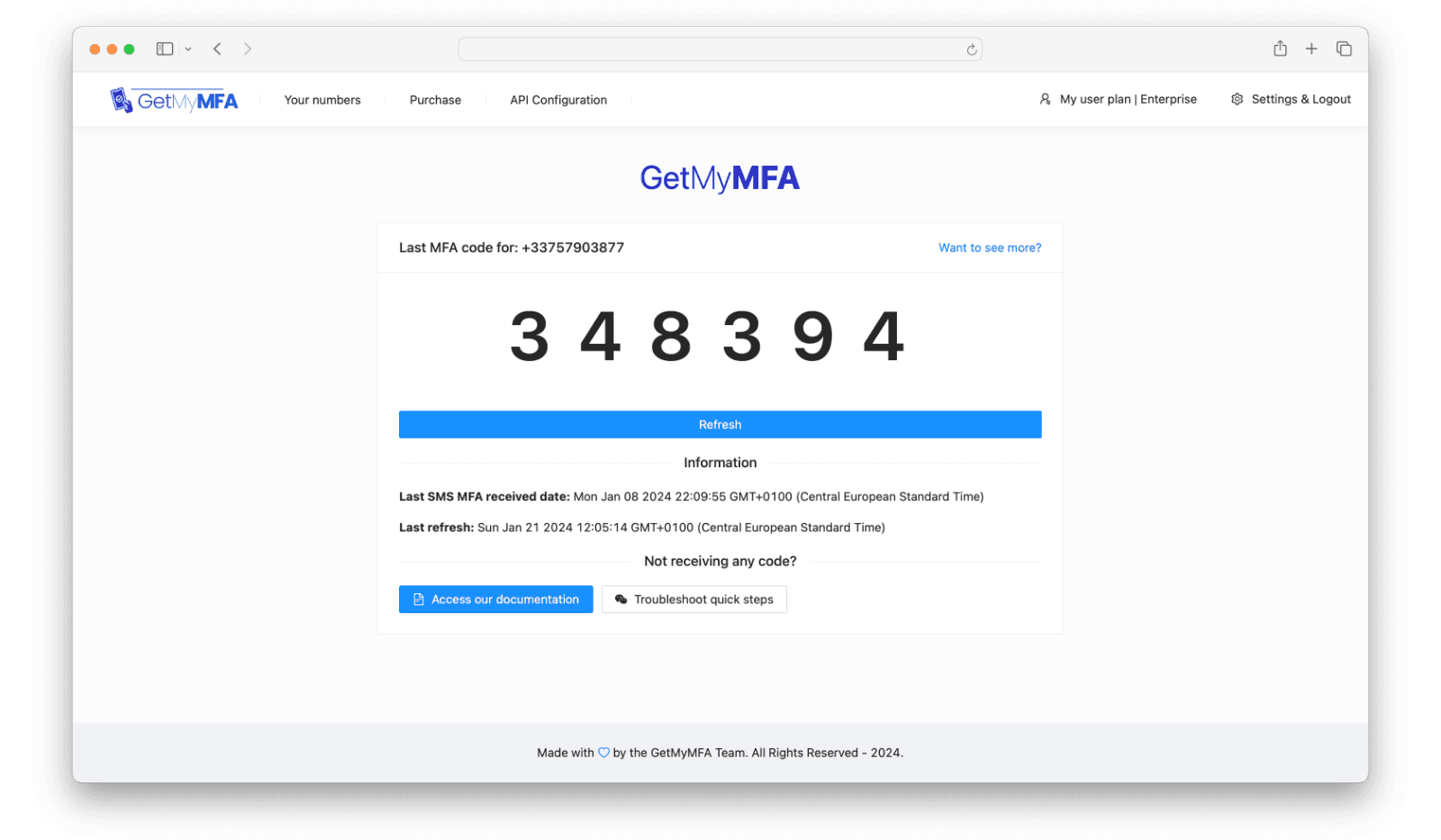
No code changes. No demo mode. No hardcoded bypass. Reviewers experience your app exactly the way real users do.
Tips for a smooth review
- Fill in both fields. The App access notes cover human reviewers; the pre-launch report settings cover the crawler. Skipping either is the most common mistake.
- Test the flow yourself first. Open the GetMyMFA web interface in a private browser, trigger 2FA on the test account, and confirm the code shows up. Make sure the test account credentials work without interactive prompts (no captcha, no email-magic-link, no device approval).
- Keep the test account active. Account lockouts, session expiry, or password rotation policies can lock the account out before the review runs. Reviews can happen 7+ days after upload.
- For closed testing tracks, share the GetMyMFA URL with your testers the same way you share it with Google. One shared virtual number is usually enough; testers just check the dashboard when they need a code.
- Be specific in your notes. Write the steps. "Go to [URL], log in with [credentials], and the latest 2FA code is displayed on the dashboard." Vague instructions like "check the website" cause delays.
What about TOTP-based 2FA?
If your Android app uses TOTP (Google Authenticator, Microsoft Authenticator, Authy) instead of SMS, GetMyMFA handles that too. You can store your TOTP secret on the platform, and GetMyMFA generates the rotating 6-digit codes for you. The reviewer or crawler reads the current code from the same web interface, just like with SMS.
For email-based verification codes, GetMyMFA also offers custom email addresses that receive verification messages. Same model: the code shows up in the web interface for whoever needs it.
iOS too?
If you ship cross-platform, you almost certainly hit the same wall on the App Store. The fix is the same on iOS, with one extra surface (App Store Connect's "App Review Information" section). See the dedicated iOS App Rejected for 2FA guide for the App Store version, or the cross-platform overview for both stores.
After approval: do you still need GetMyMFA?
Yes, for every release. Google runs a fresh pre-launch report on every Android App Bundle you upload, and policy reviews are triggered by certain types of changes. Keeping the GetMyMFA number registered on your test account means each new release passes review without setup work.
If you also want to automate MFA in your E2E test suite, GetMyMFA exposes a programmatic API (Pro plan) that you can call from your Playwright, Cypress, or Selenium tests. For app submission alone, the Starter plan is enough.
Frequently Asked Questions
Why did Google Play reject my app for 2FA?
Google Play runs an automated pre-launch report on every release and a manual policy review on many apps. Both need to log in to your app to verify it works. If your login uses 2FA via SMS or TOTP, the crawler and the human reviewer have no way to receive the code, and the app is flagged as non-functional or in violation of Google Play policies.
What is the pre-launch report and why does 2FA break it?
The pre-launch report is an automated test that Google runs on every Android App Bundle you upload. It launches your app on real devices and tries to navigate through it using a robo crawler. The crawler can be given test credentials, but Google explicitly states that 2FA-protected accounts and WebView-based authentication flows are not supported. The crawler gets stuck on the 2FA screen and reports your app as crashing or freezing.
Can I just disable 2FA for the Google review test account?
Technically yes, but it has the same problems as on iOS. You create a security exception on a production account, which can violate SOC 2, PCI-DSS, or HIPAA policies. It also means Google is testing a different login experience than your real users get. Using GetMyMFA lets you keep 2FA enabled while giving Google a way to access the codes.
Where do I add the GetMyMFA URL in the Play Console?
Open your app in the Play Console, go to App content, then to App access. Choose "All or some functionality is restricted" and add the test account credentials and a link to the GetMyMFA web interface in the instructions field. For the pre-launch report specifically, also add the credentials under Test and release → Testing → Pre-launch report → Settings.
Does this work for closed testing and internal testing tracks?
Yes. Closed and internal testing tracks involve real human testers, including the 12+ testers for 14 days requirement for new personal developer accounts. Each tester needs a way to receive 2FA codes. You can either give them all access to a shared GetMyMFA virtual number, or give each one their own. Most teams share a single number for simplicity.
Will I be rejected again after fixing the 2FA issue?
Not for the same reason. As long as the credentials and GetMyMFA URL are clearly accessible in your App content and pre-launch report settings, Google reviewers and the robo crawler can complete the login flow. Many teams use GetMyMFA on both iOS and Android in parallel for their cross-platform releases.
Pass Google Play review on the next upload
Set up in under 10 minutes · No code changes required · Starter plan included